Lo último en accesibilidad web y normativa digital

Guías sobre WCAG, ecommerce, WordPress, WooCommerce y cumplimiento legal europeo.

Your details, once during the checkout

Your details, once during the checkout

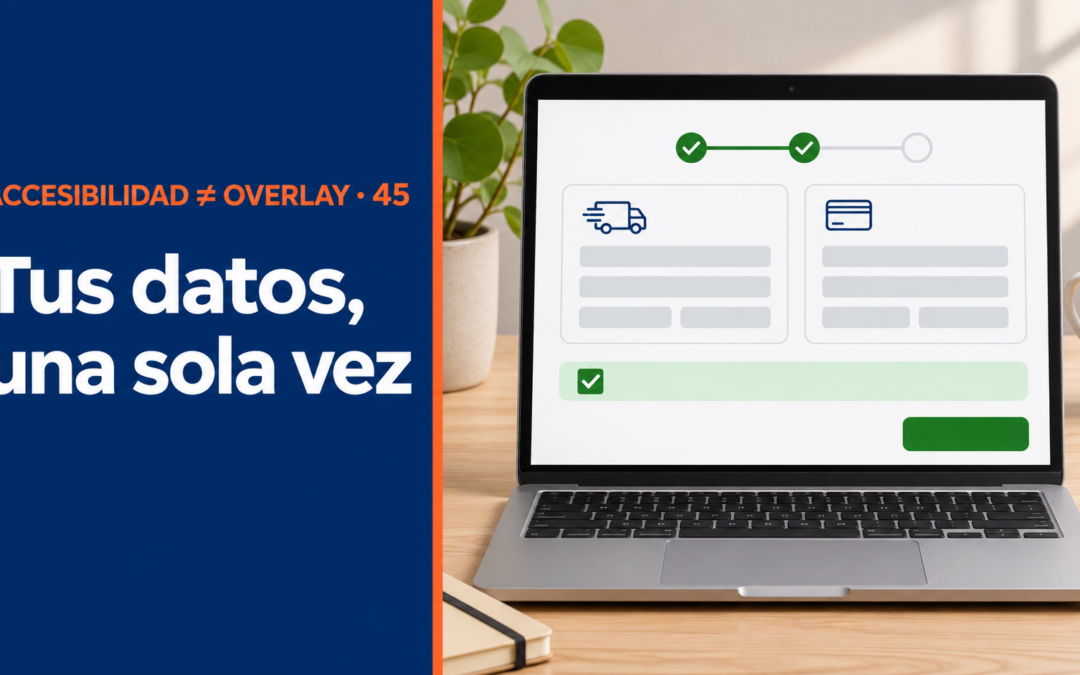
ACCESIBILIDAD ≠ OVERLAY · 45Your details, once during the checkout📅 20 November 2026   ·   ⏱ 6 min readYou enter your name, address and telephone number for a delivery. On the next screen the shop asks for the same information for the invoice. Each field...

Your details, once during the checkout

Your details, once during the checkout

You enter your name, address and telephone number for a delivery. On the next screen the shop asks for the same information for the invoice. Each field means finding the control, recalling the value and checking the result. With a screen reader, dictation or an adapted keyboard, that repetition adds work to a task you already completed. Today’s article follows one checkout to identify repeated information and test whether shoppers can reuse it while retaining control over the final addresses.

read more

Buttons that answer to their visible name

You see an ‘Add to basket’ button and ask your voice tool to activate it. Nothing happens. The button works with a mouse and keyboard, but its accessible name is ‘Buy product’. The shopper is speaking the words the shop presents. To understand the problem, compare the visible label with the name the browser exposes to assistive technology. This article follows that check from a product page to the basket, including repeated buttons, product variations and translated pages.

read more
Form errors people can recover from

Form errors people can recover from

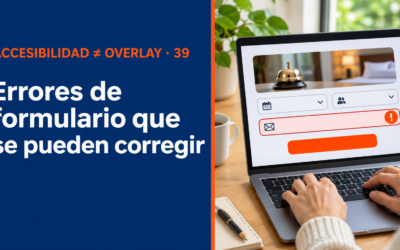
You choose a date, fill in your details and select ‘Book’. A red outline appears around the email field while your screen reader stays silent. To finish the booking, you need to know what happened, where to make the correction and whether the next attempt went through.

read more
🧑‍🦯 Blind Reader
Intent narrator ready.

Accessibility guide

This is a functional summary, not a literal reading.

Go to primary goal Jumps to the main action area (form, list or contact).

Page type: article. The main goal seems to be: to inform you.

There are 16 sections you can jump to.

Before continuing:

  • Handle cookies/consent Reason: Detecté un aviso relacionado con cookies/consentimiento. — Recommended route: Contenido principal

Go by goals

Choose what you want to do. I will explain it, then ask before jumping.

  • Handle cookies/consent Important: this may block navigation.
  • Go to Home
  • Go to About
  • Go to Products
  • Go to BlindReader
  • Go to Withdrawal Button
  • Go to Intent Flow
  • Go to Services
  • Go to Blog
  • Go to Contact
  • Go to Español
  • Go to Català
  • Go to Polski
  • Go to Română
  • Go to Italiano
  • Go to Français
  • Go to Svenska
  • Go to Deutsch
  • Go to Nederlands
  • Go to Português
Goal options
Confirmation mode

Choose how often I should ask before jumping.


Learning scope (only for “first time”)

Site: remember this goal across the whole site. Page: remember per URL.


Guided navigation

The guide announces one section at a time.

How it works: Start guide announces the first key section and scrolls to it. Next moves to the following section. To move focus to the section, use Go to current section. Stop exits.

Status: Guide inactive

Go to current section This link updates as the guide advances.

About Blind Reader

Blind Reader is an accessibility assistant that analyzes each page and narrates its purpose, key sections and recommended actions — designed for screen reader users.

Compatible page builders: Works with any WordPress theme or builder: Divi, Elementor, Gutenberg, WPBakery, Avada and others. It reads the real content of the page, not the builder markup.

Does it interfere with your content? It does not change your texts or your design. It only adds an accessible panel and fixes technical accessibility attributes (for example, names of buttons without text) so that screen readers announce them correctly.

How does it work? It analyzes the page structure (headings, links, forms, landmarks) and generates a functional summary. The guide and goals help navigate without having to scan the whole page.

Keyboard shortcut: Press Alt + G to jump directly to the first goal.